Prisme
The iPhone on the TV
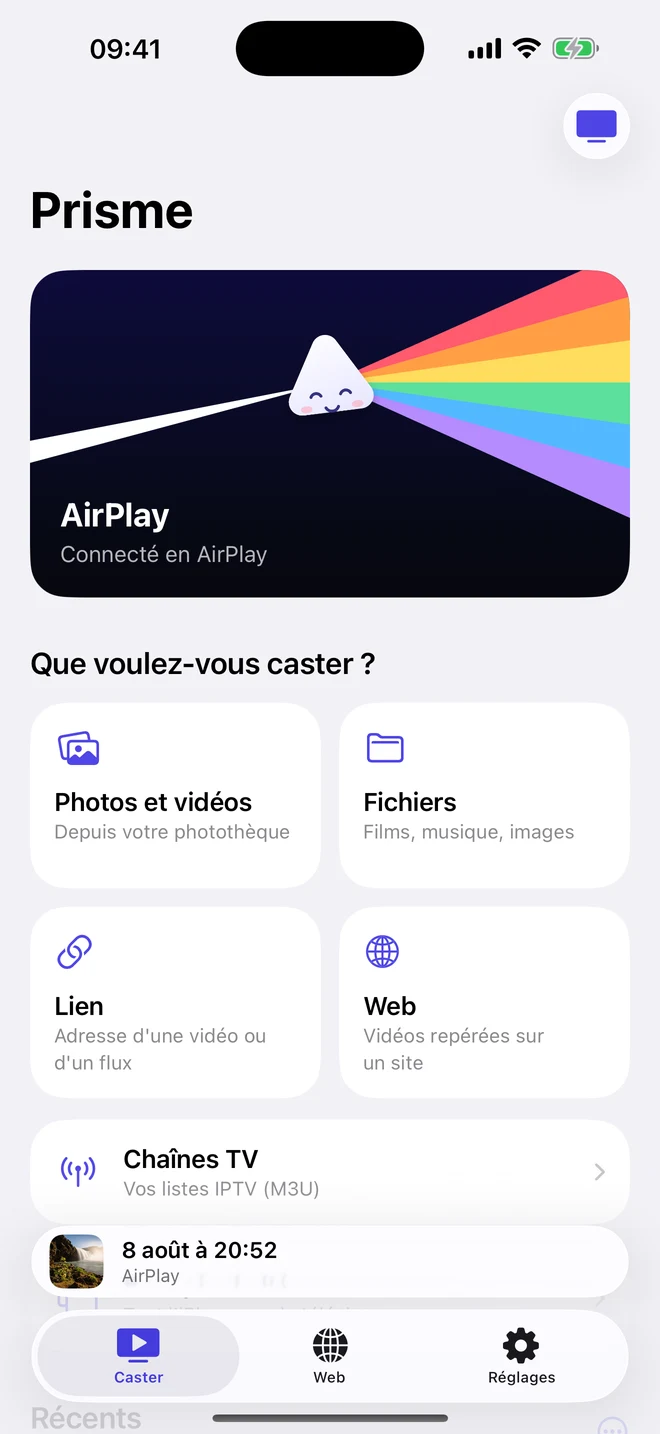
Photos, videos, files and videos from the web, sent to the television in two taps.
Coming soon to the App Store
What the app does
- Your screens
- Chromecast, Google TV and Android TV, Apple TV and AirPlay televisions, Roku.
- Your content
- photos and videos from your library, files, direct links, videos found on a website, M3U channel playlists you add yourself.
- Screen mirroring
- the whole iPhone on the television, with a Chromecast or a Roku.
- A remote
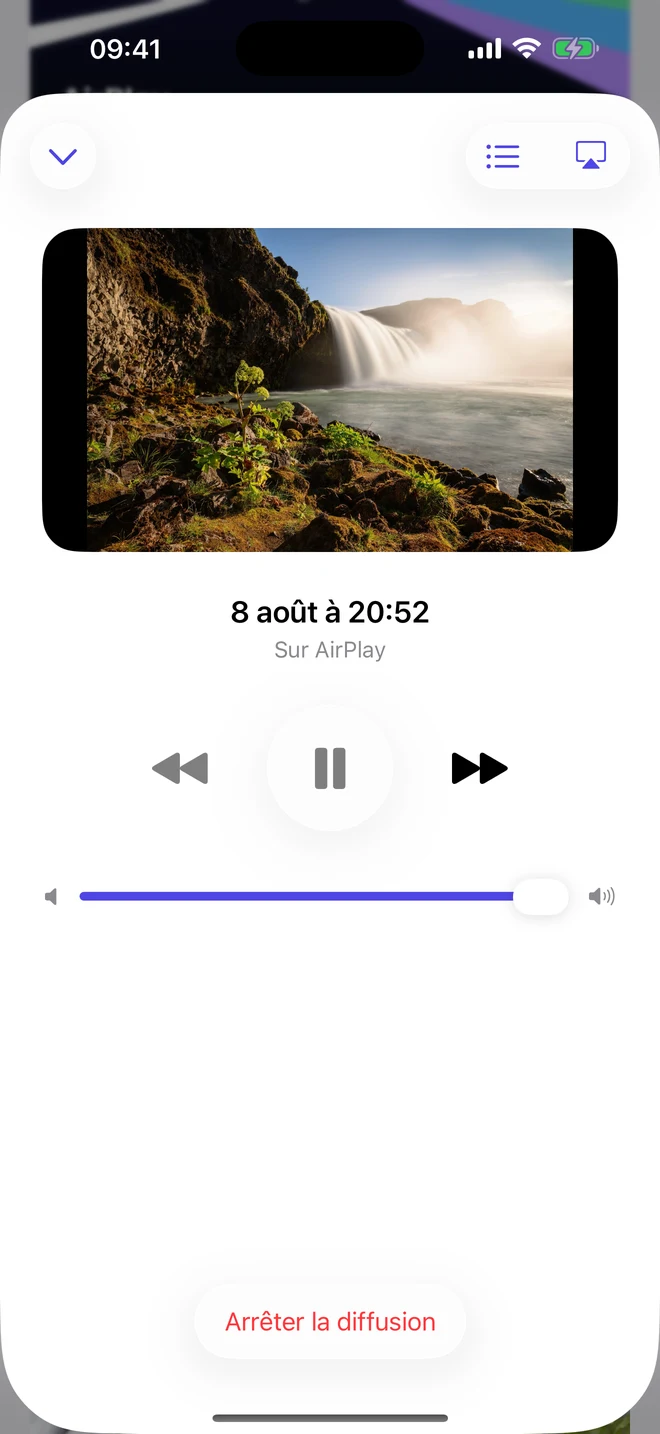
- play, pause, volume, queue, subtitles, slideshow, and resume where you left off.
- Free
- no account, no ads, in French and English.
Help
My screen does not show up
The iPhone and the screen must be on the same Wi-Fi network (a guest network often isolates devices) and the screen must be on. On the iPhone, in Settings, Privacy & Security, Local Network, check that Prisme is allowed.
How do I send to an Apple TV?
Choose AirPlay in the list of screens, start something, then pick the Apple TV with the AirPlay button in the player.
My Roku is not found
Add it by its IP address, at the bottom of the list of screens. The address is on the Roku: Settings, Network, About.
How do I add subtitles?
While casting to a Chromecast, open the remote and add an SRT or VTT file.
How do I mirror the iPhone screen?
Connect a Chromecast or a Roku, then tap “Screen Mirroring”. The picture arrives a few seconds late and without sound. For an Apple TV, use Screen Mirroring in Control Center.
Which formats play?
MP4 and MOV in H.264, photos up to 4K, MP3, AAC and M4A, M3U8 streams. DRM-protected services (Netflix, Disney+ and others) cannot be cast.
Does Prisme provide channels or films?
No. The app hosts and provides no content: it sends to the screen what you choose.
What are tips for?
Prisme is free and stays free. A tip unlocks nothing: it simply helps fund the app.
Can’t find your answer? Write to us, with your iPhone model, the screen’s model and the app’s version (at the bottom of Settings).
contact.ebunstudio@gmail.com